
Once you've logged into your linux ssh account, you'll need to use a text editor to write your code. There are a few already installed on the system (vi, emacs, etc.), but these have a bit of a learning curve associated with them. An editor that's relatively easy to learn to use is called “nano.” However, this editor is entirely operated from the keyboard, you can't use the mouse, which means you'll have to learn some simple keyboard commands. Fortunately they're pretty quick and easy to learn!
NOTE: Any command prefixed with a caret symbol (^) means to use the Ctrl key (e.g., ^G means to press the Ctrl+g keys at the same time). Any command prefixed with the letter M means to press the Alt key (e.g., M-R means to press the Alt+r keys together).
Assuming that you've logged into your linux account and are at the shell prompt (see below), issue the command to start editing with nano. The example below shows that, if you wish, you may also provide the name of the file you want to edit:
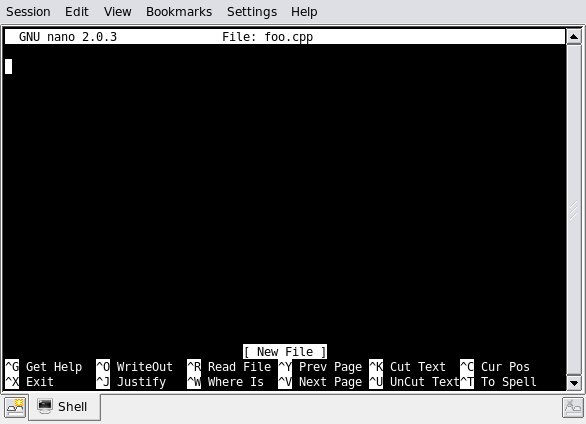
After pressing the Enter key, the nano editor appears (see image below). Notice the following elements:
The top line displays the version of nano in the left corner and the name of the file being edited.
The 3rd line from the bottom indicates the status of the file you're editing; in the image below it shows that foo.cpp is a “New File”.
The last two lines of the screen present a menu of useful keyboard commands. For example, ^X means to press Ctrl+x will exit the nano text editor. These aren't the only commands available, to see an entire list of commands enter Ctrl+g, will bring up the help window.
At this point you can type in the code for your program:
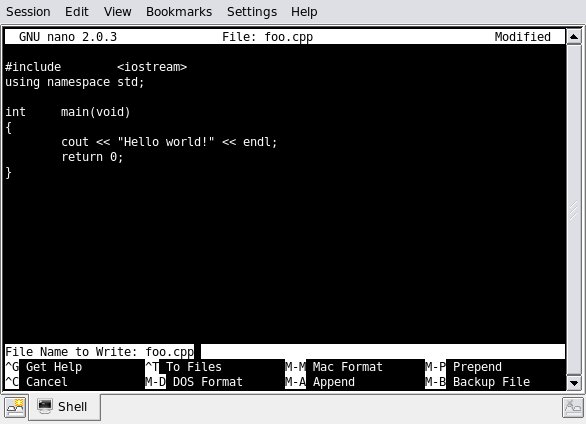
Enter the source code exactly as you see it in the window below.
Notice after your first keystroke, the word “Modified” appears in the upper-right corner; this shows that you've changed the contents of your file but it hasn't been written to the hard drive yet.
Once you've entered all the code, save the code to the disk file by pressing Ctrl+o (look at the next to last row, the second command is ^O which means to “write out” the file to the hard drive).

After entering the “WriteOut” (Ctrl+o) command, nano will display a prompt on the status line to verify that you really want to write the file contents to the hard drive (see image below):
Go ahead and press the Enter key, and nano will tell you how many lines of text it wrote to disk on the status line. Notice also that the “Modified” indicator in the upper-right corner has disappeared because the file has been saved (see image below):

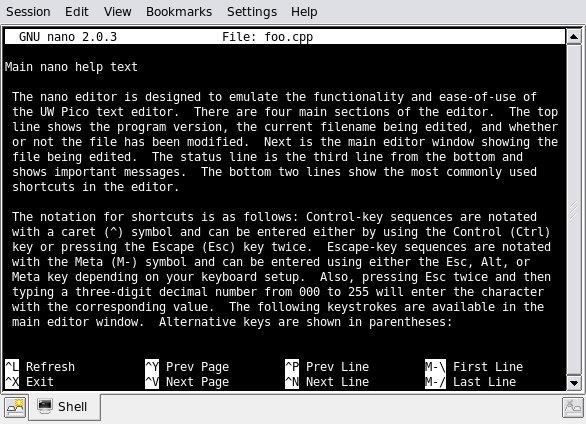
At this point you could exit the nano program (Ctrl+x) to go back to the shell prompt and compile your program with g++. Or, if you'd like to read more about what's available in nano, there's online help that's always available when you're running nano, just type Ctrl+g, which brings you to this screen:
That's probably enough to get you started! If you'd like to get more information about using nano, here are some interesting links:
Also, you should take a look at the nano keyboard commands page to have even more control over the whole process. Enjoy!